GZCTF平台搭建

Docker安装

更新系统包

1
sudo apt update

安装docker(版本为 26.1.3ubuntu124.04.1)

1
apt install docker.io

验证是否安装成功(尝试拉取hello world镜像)

1
sudo docker run hello-world

安装docker-compose

1
apt install docker-compose

更换更换docker镜像源

1
2
3
4
5
6
7
8
9
10
11
12
13
14
15
16
17
18
19
20
21
22
23
tee /etc/docker/daemon.json <<EOF
{
"registry-mirrors": [
"https://hub.uuuadc.top",
"https://docker.anyhub.us.kg",
"https://dockerhub.jobcher.com",
"https://dockerhub.icu",
"https://docker.ckyl.me",
"https://docker.awsl9527.cn",
"https://docker.m.daocloud.io",
"https://docker.laoex.link",
"https://docker.m.daocloud.io",
"https://noohub.ru",
"https://huecker.io",
"https://dockerhub.timeweb.cloud",
"https://docker.rainbond.cc",
"https://docker.1panel.live",
"https://hub.rat.dev"
]
}
EOF
systemctl daemon-reload
systemctl restart docker

PostgreSQL安装

参考文章:https://www.cnblogs.com/yaoyushun/p/17627987.html

检查是否已经安装

1
2
3
4
# psql 服务
sudo service postgresql status
# 版本查看
psql --version

安装

1
2
3
4
# 更新安装源内容
sudo apt-get update
# postgresql-contrib 额外特性安装
sudo apt install postgresql postgresql-contrib

确认安装成功

1
2
psql --version
sudo service postgresql status

image-20260419000802164

配置文件修改

在目录下创建appsetting.jso内容如下

1
2
3
4
5
6
7
8
9
10
11
12
13
14
15
16
17
18
19
20
21
22
23
24
25
26
27
28
29
30
31
32
33
34
35
36
37
38
39
40
41
42
43
44
45
46
47
48
49
{
"AllowedHosts": "*",
"ConnectionStrings": {
"Database": "Host=db:5432;Database=gzctf;Username=postgres;Password=Admin1234." //Password是你自己的数据库密码
},
"EmailConfig": {
"SendMailAddress": "a@a.com",
"UserName": "",
"Password": "",
"Smtp": {
"Host": "localhost",
"Port": 587
}
},
"XorKey": "Admin1234.", //同样的,你自己的密码
"ContainerProvider": {
"Type": "Docker", // or "Kubernetes"
"PortMappingType": "Default", // or "PlatformProxy"
"EnableTrafficCapture": false,
"PublicEntry": "你自己的服务器ip", // or "xxx.xxx.xxx.xxx"
// optional
"DockerConfig": {
"SwarmMode": false,
"Uri": "unix:///var/run/docker.sock"
}
},
"RequestLogging": false,
"DisableRateLimit": true,
"RegistryConfig": {
"UserName": "",
"Password": "",
"ServerAddress": ""
},
"CaptchaConfig": {
"Provider": "None", // or "CloudflareTurnstile" or "GoogleRecaptcha"
"SiteKey": "<Your SITE_KEY>",
"SecretKey": "<Your SECRET_KEY>",
// optional
"GoogleRecaptcha": {
"VerifyAPIAddress": "https://www.recaptcha.net/recaptcha/api/siteverify",
"RecaptchaThreshold": "0.5"
}
},
"ForwardedOptions": {
"ForwardedHeaders": 5,
"ForwardLimit": 1,
"TrustedNetworks": ["192.168.12.0/8"]
}
}

创建compose.yml文件,内容如下

1
2
3
4
5
6
7
8
9
10
11
12
13
14
15
16
17
18
19
20
21
22
23
24
25
services:
gzctf:
image: registry.cn-shanghai.aliyuncs.com/gztime/gzctf:develop
restart: always
environment:
- "GZCTF_ADMIN_PASSWORD=<Your GZCTF_ADMIN_PASSWORD>"
# choose your backend language `en_US` / `zh_CN` / `ja_JP` ...
- "LC_ALL=zh_CN.UTF-8"
ports:
- "8880:8080"
volumes:
- "./data/files:/app/files"
- "./appsettings.json:/app/appsettings.json:ro"
# - "./kube-config.yaml:/app/kube-config.yaml:ro" # this is required for k8s deployment
- "/var/run/docker.sock:/var/run/docker.sock" # this is required for docker deployment
depends_on:
- db

db:
image: postgres:alpine
restart: always
environment:
- "POSTGRES_PASSWORD=<Your POSTGRES_PASSWORD>"
volumes:
- "./data/db:/var/lib/postgresql"

然后执行命令

1
2
docker-compose down
docker-compose up -d

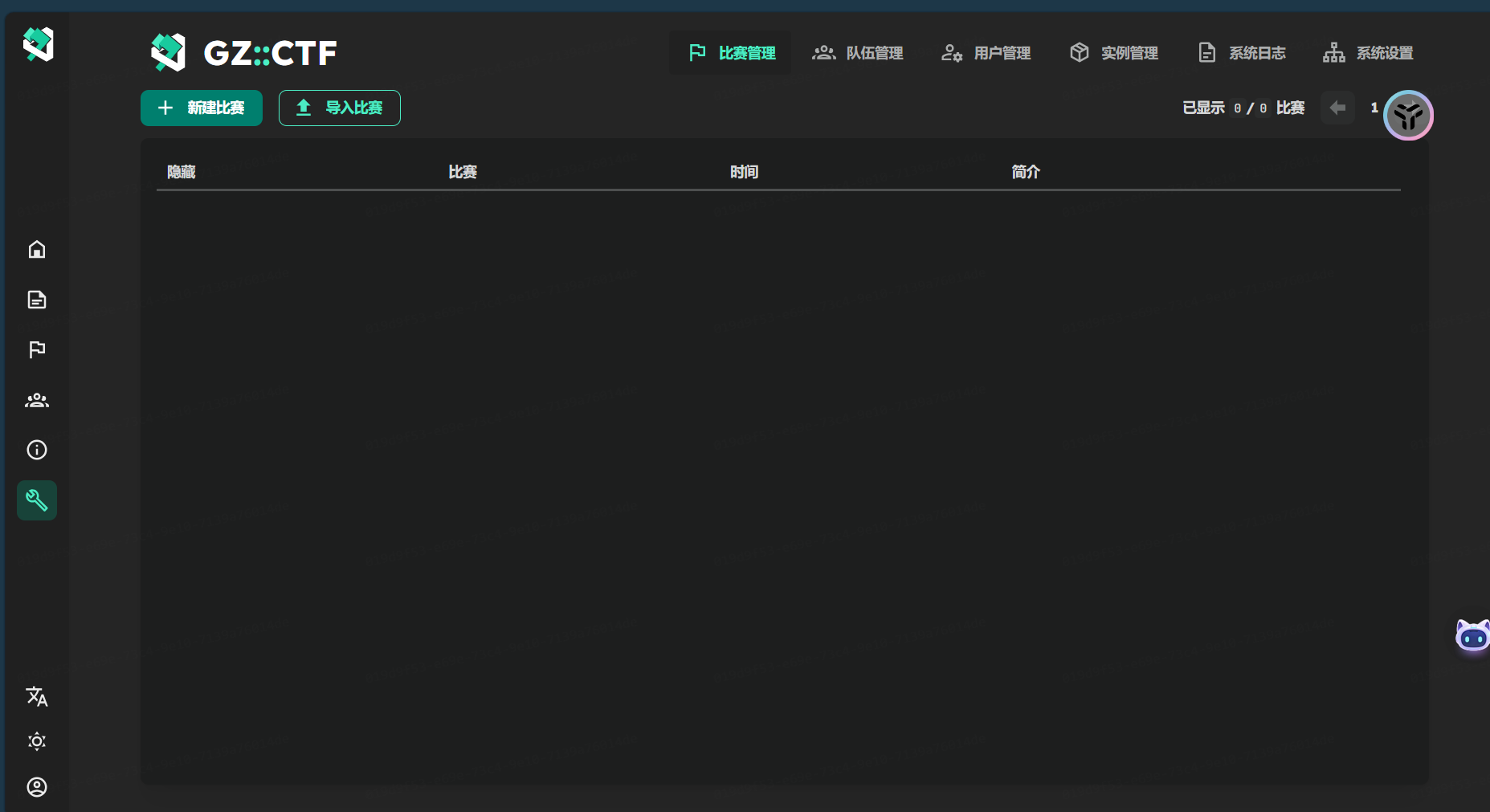
然后在浏览器就可以访问到平台了,通过Admin登录,密码就是刚刚两个文件里写的密码

image-20260419000806420


GZCTF平台搭建
https://colourful228.github.io/2026/04/17/GZCTF平台搭建/
作者
Colourful
发布于
2026年4月17日
更新于
2026年4月19日
许可协议